

App Veil
App Veil hides selected apps from your teammates while you share your screen. You can still see and use those apps normally, so you can check a message or open a personal note without showing it to everyone in the call.
App Veil is available on macOS. It works when you share an entire display. It doesn’t apply when you share a single window.
Choose which apps to hide
Section titled “Choose which apps to hide”- Open Settings > App Veil in the Hopp desktop app.
- Click Add application and search for an installed app.
- Select the app to add it. Its switch turns on automatically.
- Share your screen in a call or room.
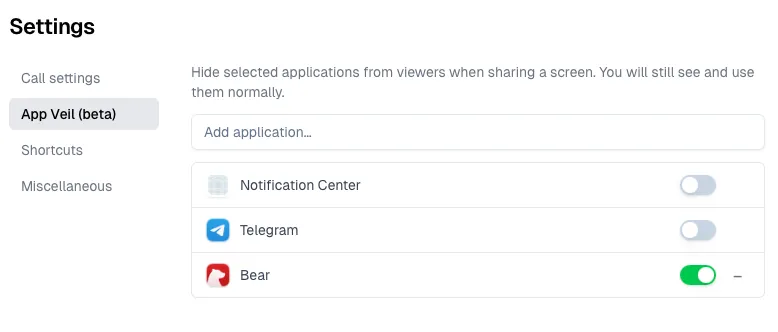
An app is hidden when its switch is on. In the example above, Bear is hidden, while Telegram and Notification Center remain visible.
Notification Center is already in the list, but starts switched off. Turn it on if you want to hide macOS notification banners and Notification Center from your screen share.
What you and your teammates see
Section titled “What you and your teammates see”On your screen, you can still see and use the app. Here’s a Bear note with the Hopp App Veil panel in the bottom-right corner:

The panel tells you whether teammates can see that window. In this screenshot, Hidden means the note is hidden from them, even though you can read and edit it. Only you see the panel; it doesn’t appear in your screen share.
Click the eye button to switch this window between hidden and visible. This applies to that window only. Other windows from the same app stay hidden, and new windows start hidden too. When you stop and start sharing again, all windows from your enabled apps start hidden.
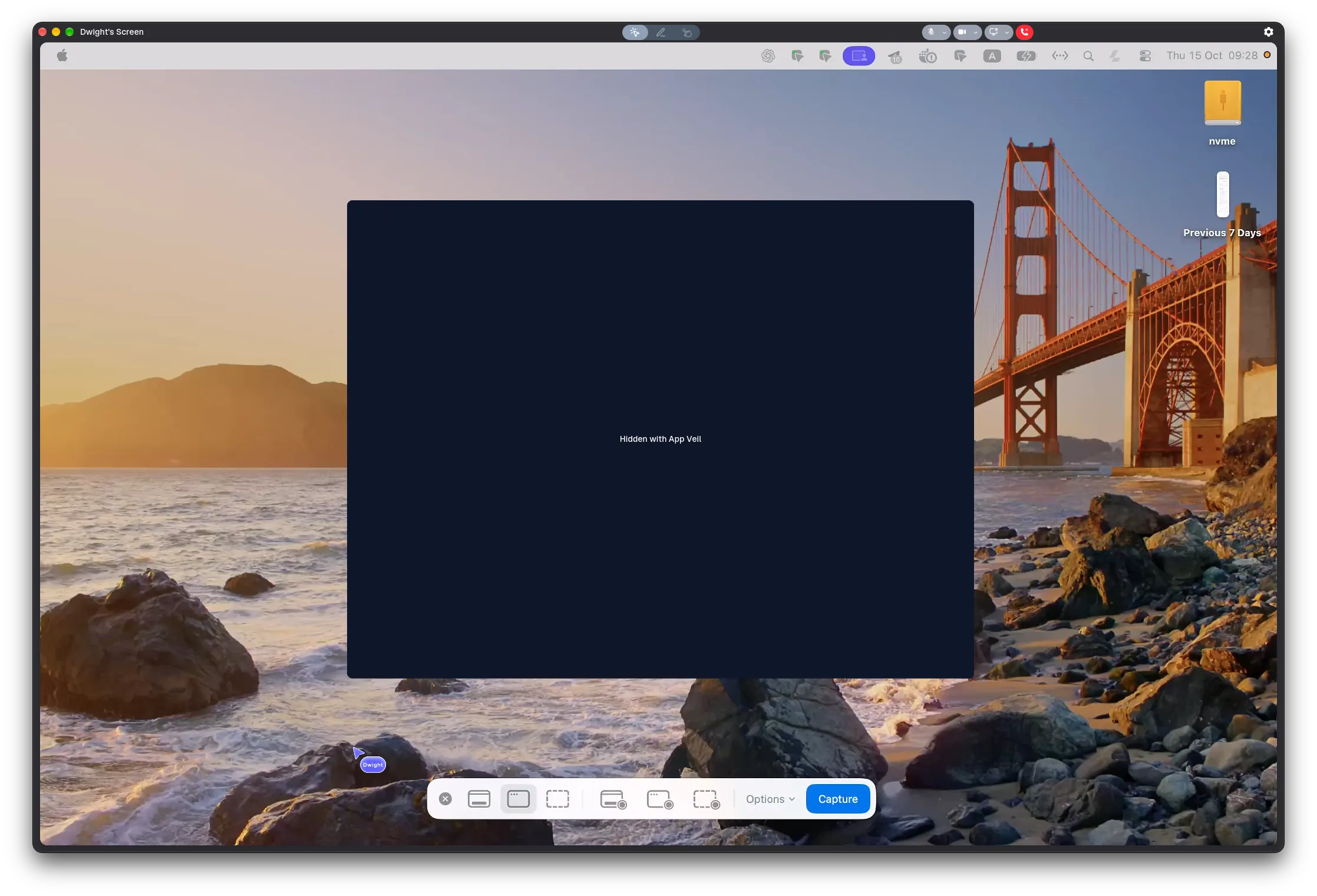
Your teammates see a dark area labeled Hidden with App Veil where the window is. The rest of your shared screen stays visible.
App Veil doesn’t turn off remote control. If you want to stop teammates from interacting with your computer, turn off remote control in the call controls.